Associate a Work Order to a Custom Inspection
Work orders with information related to a custom inspection can be associated to it. You can also create a work order from this panel. See Create an Attached Work Order for more information.
- Open the inspection.
- Click the Details tab.
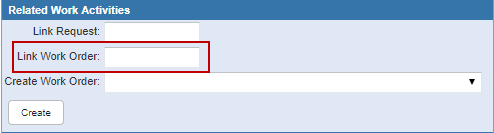
- Navigate to the Related Work Activities section.
- Enter the work order ID in the Link Work Order field.
- Click Save.

 NOTE: Multiple work orders can be linked to an inspection.
The work order ID shows in the Related Work Activities panel on the inspection. Click Open WO to view it. The inspection shows in the Related Work Activities panel on the work order.
NOTE: When a work order is attached to an inspection, the Details tab on the inspection includes a Cancel WO? check box.